Keycloak
Accessing Keycloak User Dashboard
Section titled “Accessing Keycloak User Dashboard”- Log into your keycloak domain admin/meru/console using same credentials as Meru. (realm manager role is required, otherwise user will be caught in a loop.)
Creating Users
Section titled “Creating Users”- Ideally, users will register themselves by clicking on the register button on the Meru login page.
- Open the left menu bar and you’ll see Users and Groups. We will only be working with the Users tab.
- Click on the Add User button.
- For Required user actions, select Update Password. This requires the new user to change the default password you create.
- For Email Verified, only toggle this to Yes if you know that the email address exists and is spelled correctly. Otherwise the user can verify their address on setup, we recommend erring on leaving this unchecked.
- Add the user’s email address to the Email field.
- Add first and last name.
- Ignore groups.
- Click Create.
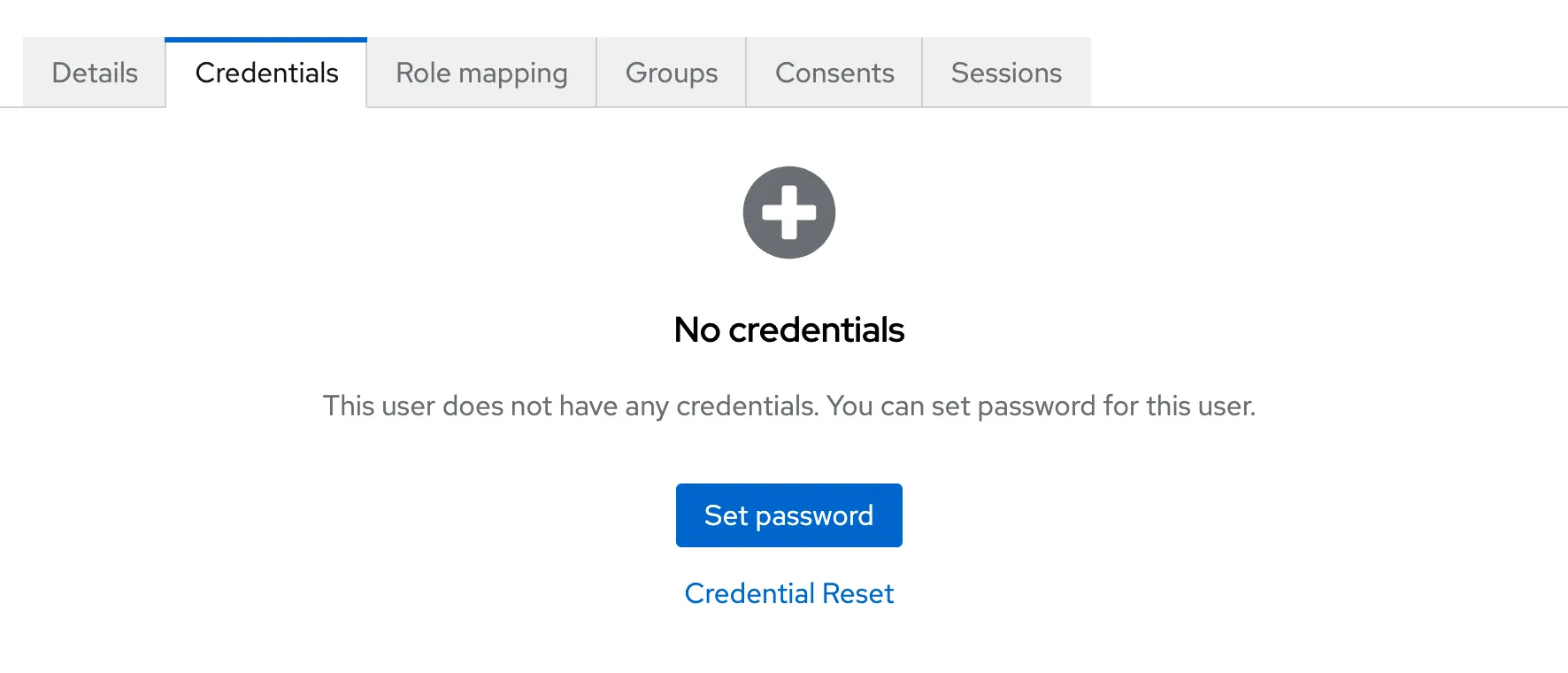
- Go to the user and click on the Credentials tab at the top.
- Click on the Set password button.
- Add a temporary password, we recommend
changemeall lowercase and one word. Repeat for the confirmation field and make sure Temporary is set to On. - Click the Save button, and then the Save password button.
- Next go to the Role mapping tab at the top.
- Click on the Assign role button. The two roles that are relevant are
global_adminandrealm_manager.- Global admin has access to everything in Meru, can create entities, harvest, etc.
- Realm manager has the ability to come into this section of keycloak and administer users from this side. They can also lock everyone else out so this is a privileged role.
- Ignore
default-roles-meru.
- Once you have selected one or both of the roles, click Assign.
Resetting User Passwords
Section titled “Resetting User Passwords”- Go to the Users tab in the left menu.
- Click on the email of the user whose address you would like to change.
- Go to the Credentials tab at the top.
- Click on the Reset password button.
- Add a temporary password, we recommend
changemeall lowercase and one word. Repeat for the confirmation field and make sure Temporary is set to On. - Click the Save button, and then the Reset password button.
Removing or Disabling Users
Section titled “Removing or Disabling Users”- We recommend disabling users instead of deleting them when possible.
- To disable a user, click on the Enabled toggle in the top right of the user page, above the tab menu. This keeps the user record intact, but prevents them from logging in.
- To delete a user, click on the Action dropdown at the top right, next to the Enabled toggle.
- Click Delete.
User Detail Updates
Section titled “User Detail Updates”If a user would like to update their name or other details, they can do so via the Edit Profile button at the top right of the main navigation in Meru.